
The DIY website that C&CZ maintains allows people to control certain properties of their science account and change/view their used services.
The pages here contain extra documentation for certain features. We strive to keep DIY intuitive and lean. Some things might require more explanation, instead of trying to fit this into the DIY site itself, we explain those here.
We maintain a glossary to document features on the DIY website.
SSH Public Keys
Since CPK 1383, SSH key usage needs “go through us”, to prevent phishers to update those keys as well. Currently two uses for these keys are defined:
login: this key allows you to login on linux loginservers via SSH.superchown: this key allows usage of superchown.
Enabling Multi-Factor Authentication
To set up Multi-Factor Authentication (MFA) in DIY, follow these steps:
-
Log in to DIY using your Science username and password. (If you have a new account, you must first set a valid password in the DIY password settings!)
-
Open “Change Second Factor”:
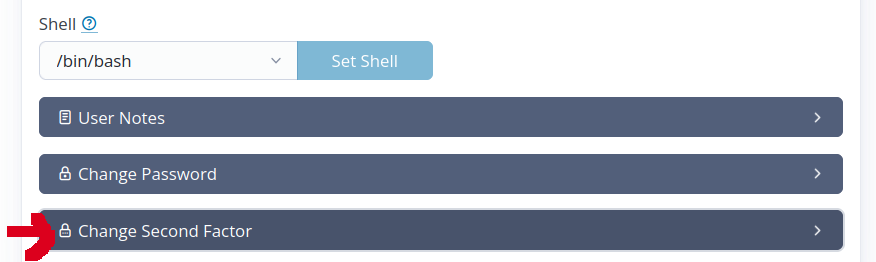
-
Click “Enable two-factor authentication for …”:
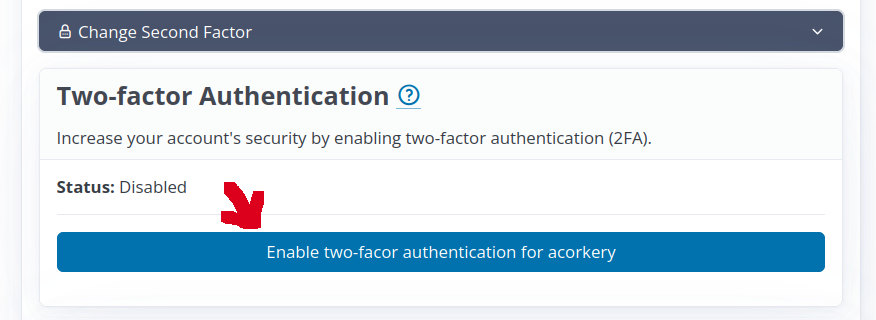
-
You will now see a QR code. Scan it with your phone’s authenticator app.
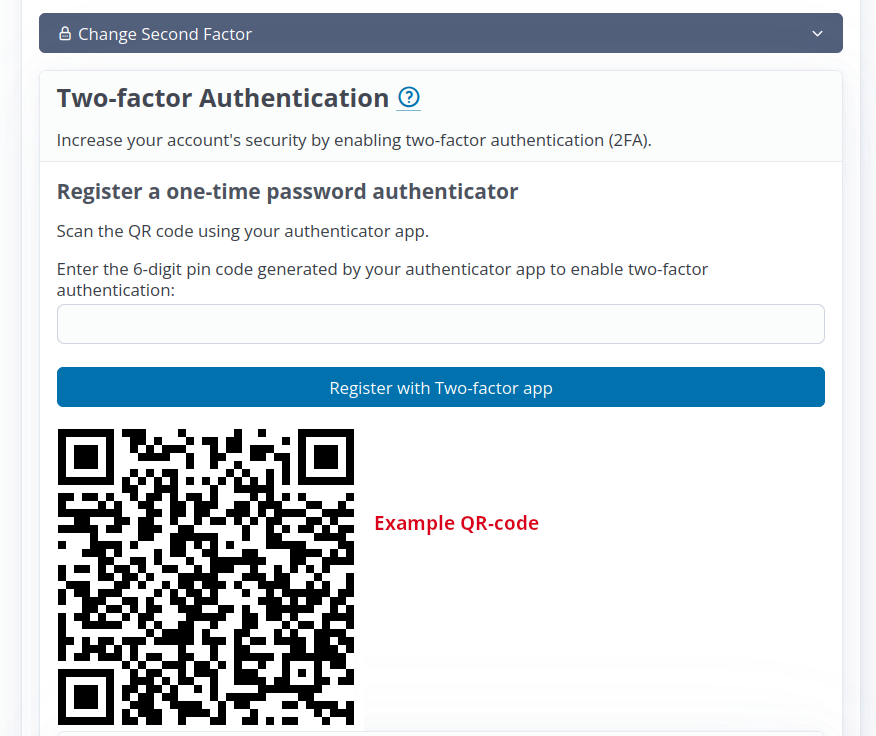
-
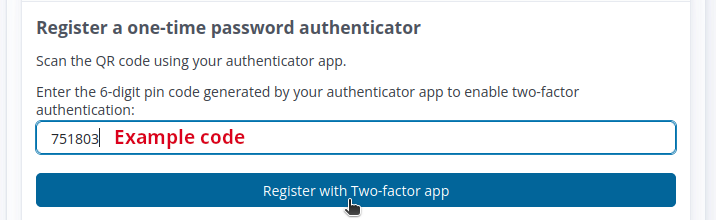
A new entry will appear in your authenticator app. When you tap it, a 6-digit code will appear. It may look like this:
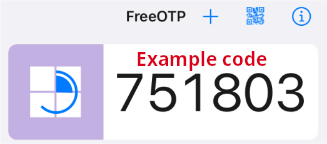
-
Enter the PIN code generated by your phone. Then click “Register with Two-factor app”:
-
If you entered the correct code, it will now show that your second factor is “enabled”:
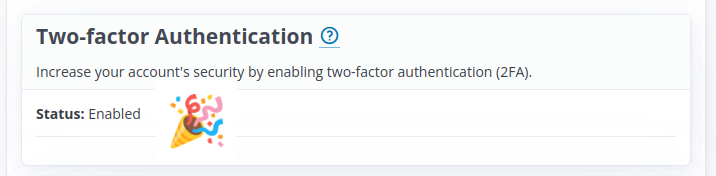
If not? Try again or contact us.
Clickable Elements vs Non-clickable
DIY has been designed around the following rule:
If something (i.e. an user or group link) is clickable you have read or edit rights on that object. If not, you are not allowed to read the user’s or group’s details.